Vehicle Dashboard API
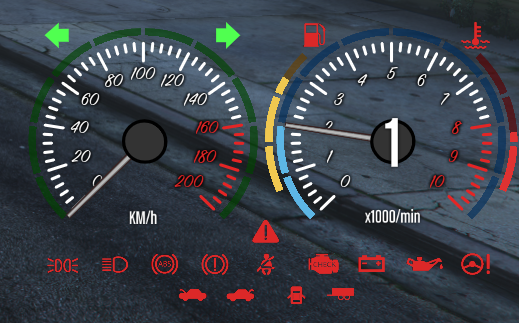
The Vehicle Dashboard is a fully functional instrument cluster. It renders Speed, RPM, Fuel, Engine Temperature, and warning lights. It supports both Analog (Dials) and Digital (Numeric) modes.
⚙️ Internal Architecture
Delta Compression & Thresholds
Updating the UI every frame (60+ times a second) for a needle that hasn’t moved is wasteful. The dashboard uses a Delta Threshold system:
- RPM: Only updates if the value changes by more than 0.5%.
- Speed: Only updates if speed changes by more than 0.2 units.
- Result: When idling or cruising at constant speed, the dashboard consumes almost 0.00ms CPU time, waking up only when acceleration or deceleration occurs.
Dual-Loop Processing
- Fast Loop (Every Frame): Handles RPM and Speed for smooth visuals.
- Slow Loop (Every 500ms): Handles static data like Fuel Level, Oil Temperature, Gear changes, and Warning Lights. This separation ensures that heavy logic (checking vehicle damage flags) doesn’t impact rendering framerate.
Accessing the API
local Dash = exports['eir_hud']:GetEirAPI().VehicleDashboard
-- or
local Dash = exports['eir_hud']:GetVehicleDashboardAPI()
Display Modes
SetDigital(boolean)
Switches the visual style of the cluster.
true: Numeric readout (Digital Speedometer).false: Analog Dials (Needles).
-- Switch to Digital mode
Dash.SetDigital(true)
Warning Lights (Symbols)
The dashboard automatically syncs with vehicle state (lights on, high beams, damage). However, you can manually force specific indicators (e.g., for a custom “Seatbelt” script or “Check Engine”).
SetDashSymbol(symbolID, color)
Overrides the state of a specific dashboard icon.
Parameters:
symbolID:integer(See Vehicle Dashboard Symbols).color:integer- The color to set (SColor).0: Green1: Orange/Yellow2: Red3: Blue- Pass
-1to release the override and let the game control the light again or turn off the symbol.
-- Turn on the Seatbelt light (ID 12) in Red
Dash.SetDashSymbol(12, 2)

-- Turn off the override (return to game logic)
Dash.SetDashSymbol(12, -1)
Dial Customization
You can modify the properties of the gauges (Speed/RPM/Fuel/Temp) at runtime. This is useful for adapting the speedometer to the current vehicle (e.g., higher Max RPM for supercars).
ApplyComponentValues(componentId, valuesTable)
Updates specific configuration properties of a gauge.
Component IDs:
0: RPM Gauge1: Speed Gauge2: Fuel Gauge3: Temperature Gauge
Values Table Keys:
color(SColor): Tint color of the gauge.max_value(number): The value at the end of the dial (e.g., 300 for 300km/h).min_rot,max_rot(float): The angle range of the needle.tick_thickness,tick_length: Visual style of the tick marks.fontSize: Size of the numbers.- … (See
Config.luafor full list)
Example: Adapting to a Supercar
-- Change Speedometer (ID 1) to go up to 400 KM/h and make it Red
Dash.ApplyComponentValues(1, {
    max_value = 400,
    color = SColor.HUD_Red
})
Visibility & Positioning
ShowComponent() / HideComponent() / ToggleComponent()
Standard visibility controls.
SetComponentPosition(x, y) / SetComponentSize(w, h)
Standard positioning controls.
SetComponentColour(col)
Updates the global tint.
Data Retrieval
GetComponentInfo()
Returns the base component info.
- Returns:
BaseComponentInfo
GetBoundsFromAnchor()
Calculates the exact screen boundaries of the cluster.
- Returns:
BaseComponentData
GetValuesRuntime()
Returns the current configuration of all dials and modes.